

If your application needs to maintain a history of chat messages[] as context for the model, you should follow the Chat Completions tutorial.
Upload Your Dataset
For this example, we are teaching the model to classify financial sentiment from text. You can follow along with the Tutorials/FinancialSentiment dataset containing 2000 rows of text and their corresponding sentiment labels. The dataset has one column for the prompt and one for the sentiment label (positive, negative, or neutral). Oxen supports datasets in a variety of formats, including jsonl, csv, and parquet.
Fine-Tuning The Model
Once you have uploaded your dataset, click the “Actions” button and select “Fine-tune a model”. Next select your base model, the prompt source, the response source, whether you’d like to use LoRA or not, and if you want advanced control over the fine-tune. For this example, we are using the Qwen3-0.6B model, which is small and fast to fine-tune.
 For our Advance Options, you can have control over hyper-parameters and model specifications like learning rate, batch size, and number of epochs.

Monitoring the Fine-Tune
While we’re fine-tuning your model, you’ll be able to see the configuration, logs, and metrics of the fine-tuning.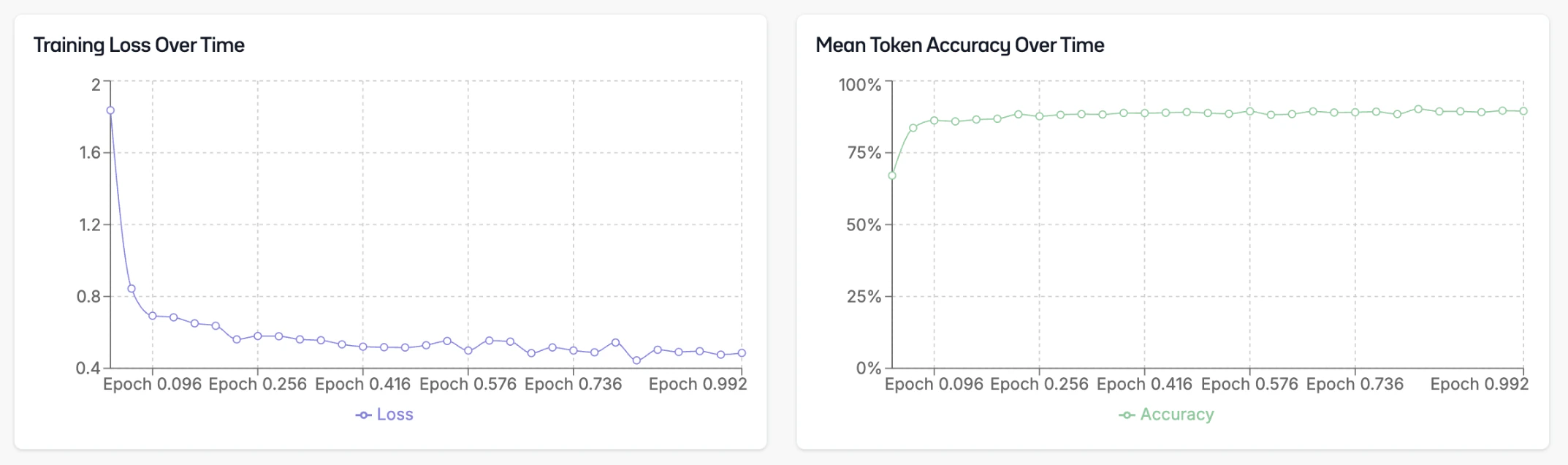
Deploying the Model
Once your fine-tuning is complete, go to the info page and click “Deploy”. Oxen.ai will spin up a dedicated endpoint for your model to access via a chat interface or through the API. After the model is deployed, you can click the “Chat with this model” button to open a chat interface.
 This will bring up a chat interface where you can test your model to see how it performs.

Model API
You can integrate it into your application using the API. The API is OpenAI compatible, so you can use any OpenAI client library to interact with it. The base URL for the API ishttps://hub.oxen.ai/api.
your-model-id with the ID of your fine-tuned model.