

Upload Your Dataset
For this example, we are teaching the model to answer questions based on context that is supplied in the system prompt. You can follow along with the Tutorials/CoQA dataset containing over 7,000 rows of chat messages. Each row of the dataset contains a conversation between a user and an assistant. This particular dataset focuses on multi-turn conversations. Each example starts by grounding some context taken from a news article or a Wikipedia article. The user then asks a question about the context, and the assistant answers the question. There are multiple back and forth exchanges between the user and the assistant, each question building on the previous one. Here’s a few examples from the paper to give you an idea of the task.
 Notice that you would not be able to answer the second question without the first question being answered first.
Dataset Format
Oxen.ai supports datasets in a variety of file formats, including jsonl, csv, and parquet. The only requirement is that you have a column where each row is a list of messages. Each message is an dictionary with arole and content key. The role can be “system”, “user”, or “assistant”. The content is the message content.
Fine-Tuning The Model
Once you have uploaded your dataset, click the “Actions” button and select “Fine-tune a model”. Next select your base model, the messages source, whether you’d like to use LoRA or not. We recommend starting with a smaller model like Qwen3-0.6B for faster iteration, or a larger model like Llama 3.1 8B for better performance on complex conversations.
 For our Advance Options, you can have control over hyper-parameters and model specifications like learning rate, batch size, and number of epochs. These settings can help you optimize for your specific use case, whether you prioritize training speed, model accuracy, or computational efficiency.

Monitoring the Fine-Tune
While we’re fine-tuning your model, you’ll be able to see the configuration, logs, and metrics of the fine-tuning. This helps you track the model’s progress and identify if you need to adjust any hyperparameters or stop training early if the model has converged.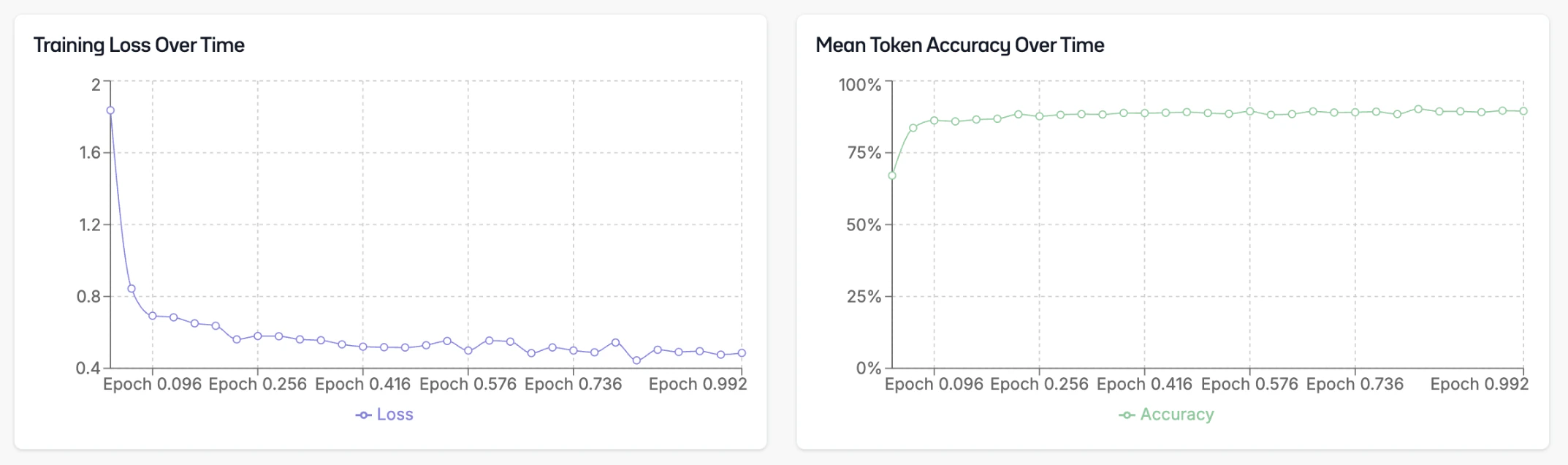
Deploying the Model
Once your fine-tuning is complete, go to the info page and click “Deploy”. Oxen.ai will spin up a dedicated endpoint for your model to access via a chat interface or through the API. After the model is deployed, you can click the “Chat with this model” button to open a chat interface where you can test multi-turn conversations. This will bring up a chat interface where you can test your model with back-and-forth conversations to see how it maintains context across multiple turns.

Model API
You can integrate it into your application using the API. The API is OpenAI compatible, so you can use any OpenAI client library to interact with it. The base URL for the API ishttps://hub.oxen.ai/api.
For chat completions, you’ll send a list of messages that includes the conversation history. Each message should have a role (either “user”, “assistant”, or “system”) and content.
your-model-id with the ID of your fine-tuned model. The model will use the entire conversation history to generate contextually appropriate responses.